Introduction To Connection Manager
The Connection Manager is a centralized interface within Screendragon that enables users to configure, manage, and monitor integrations with external systems. It supports API triggers, webhooks, and other connectivity mechanisms to ensure seamless data exchange across services.
Key Features
- Integration Setup
Easily connect to third-party systems (e.g., CRM, ERP, DAM, CMS).
- API Trigger Configuration
Define conditions under which APIs are called.
- Webhook Management
Set up outbound webhooks for real-time data flow.
- Authentication Support
OAuth2.0, Basic Auth, and Custom Headers.
- Error Handling
Built-in mechanisms to handle/log failures.
Accessing the Connection Manager
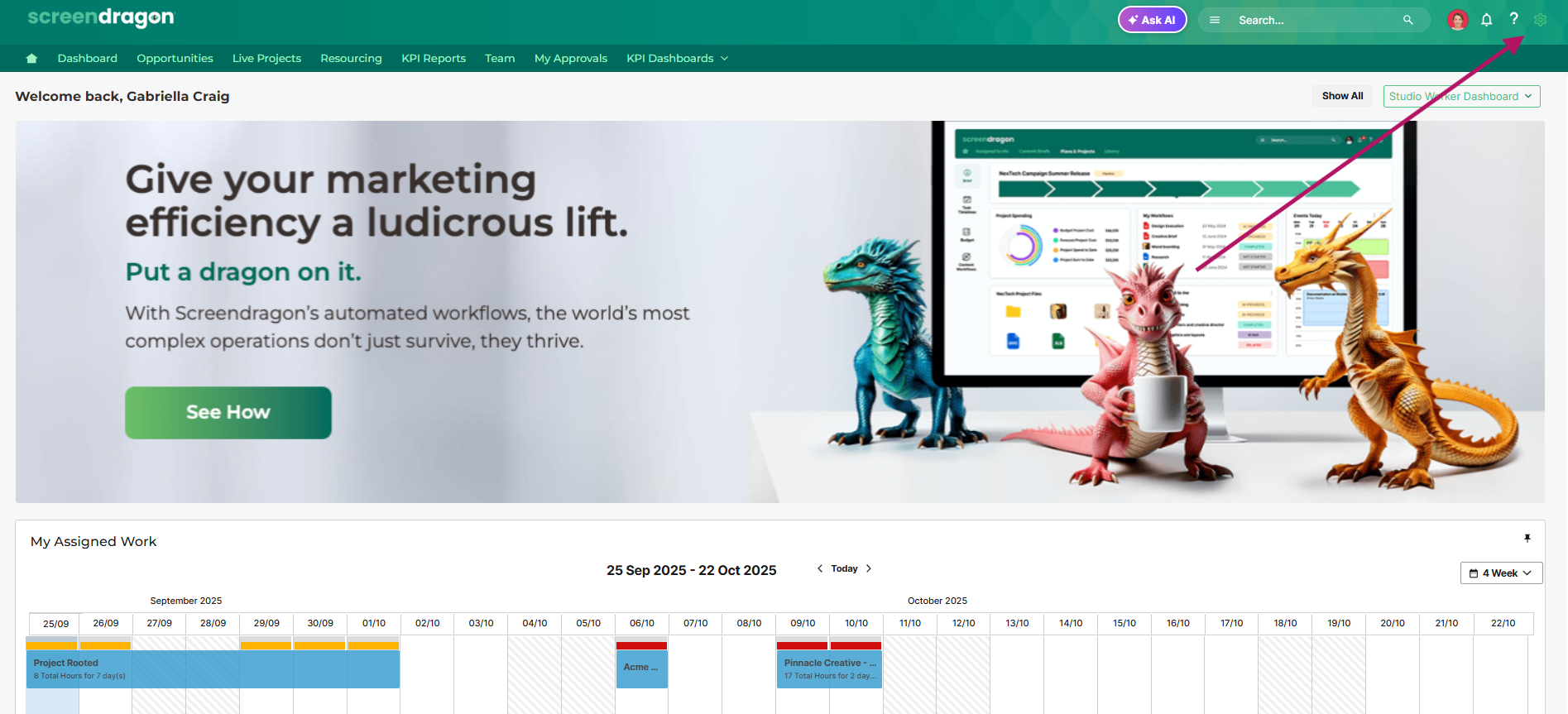
Connection Manager is accessible via the Admin Tools section of the platform. To navigate:
- Click on Admin Tools (clog) on the top right corner of site
 .
.
- Select Connection Manager from the available menu options.
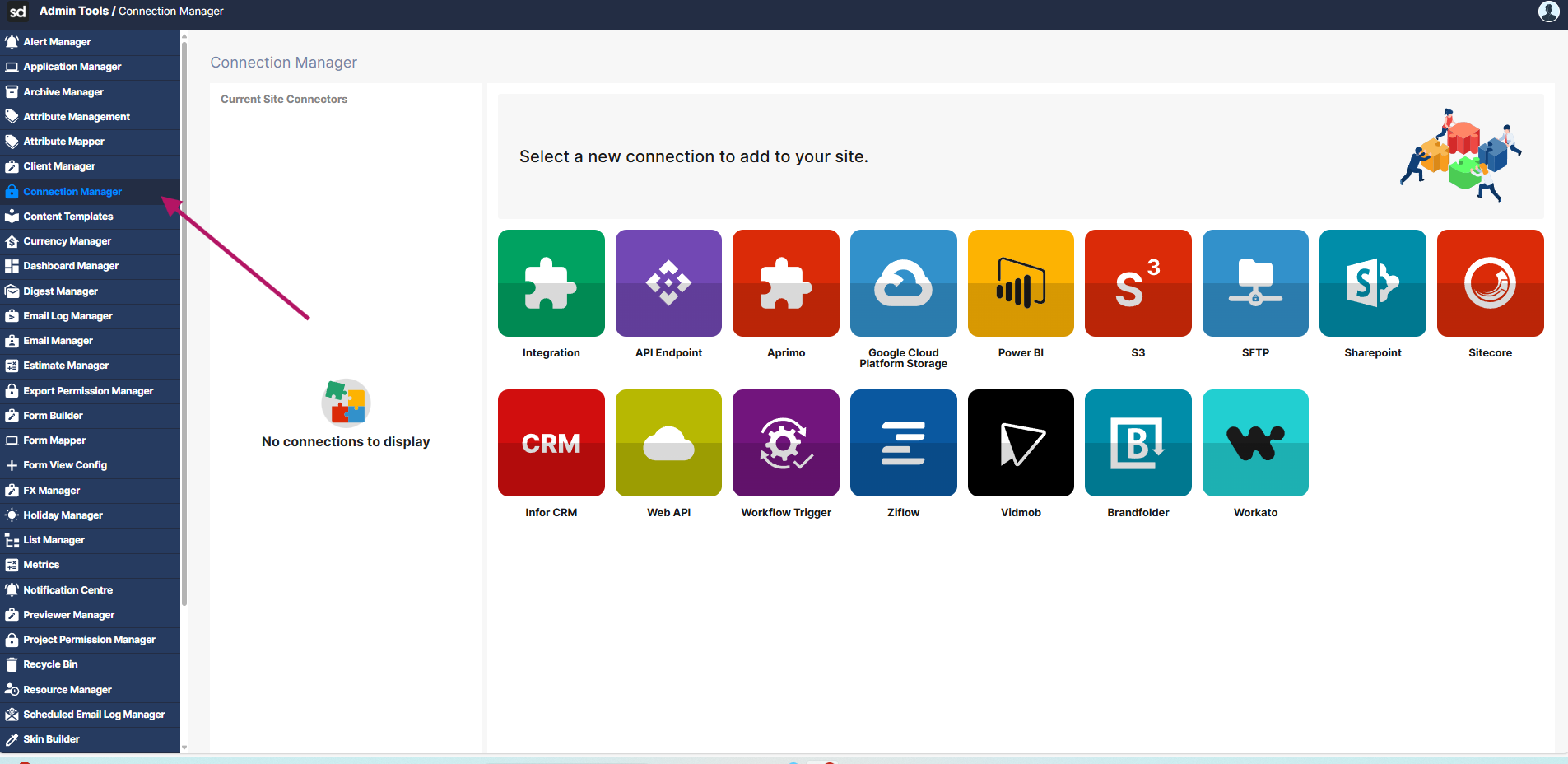
- Once inside, users will see a visual interface with badges representing pre-configured, out of the box connectors for commonly used systems. These connectors provide quick access to integration setup.
- In addition to the pre-configured options, users can create custom connectors by configuring webhooks to their specific integration.
Creating a Custom Connector
1. To create a custom Connector, select the appropriate badge from Connection Manager for an 'API Endpoint' or 'Integration'.
2. Enter the required details including :
- Endpoint Address :
The target URL for the API.
- Authentication Mode
Choose from supported methods such as OAuth2, API Key, Basic Auth, or custom headers.
- Authentication Details
Enter details like API Key/Client Credentials as per mode selected.
- Payload(if applicable)
Define the request body structure in JSON format, If required.
- Response Mapping
Map the expected response to required fields in the forms trigger the API call.
- Error Mapping
Specify how to map/audit the error responses.
- Callback URLs(if applicable)
Provide endpoints for receiving asynchronous responses or status updates.
3. Save and complete the setup.
4. Connect the webhooks to Workflows
This allows to trigger external API calls based on specific events or conditions defined in the workflow.
Available Trigger conditions include
- Entry/Exit of a Workflow Step
- On a Workflow Action
- On a Scheduled Action
Was this article helpful?
That’s Great!
Thank you for your feedback
Sorry! We couldn't be helpful
Thank you for your feedback
Feedback sent
We appreciate your effort and will try to fix the article